
What is a Module?
Before we get into how to build a custom module in GZCMS, it may be worth while to back up and make sure we have the answer to the question, what is a module?
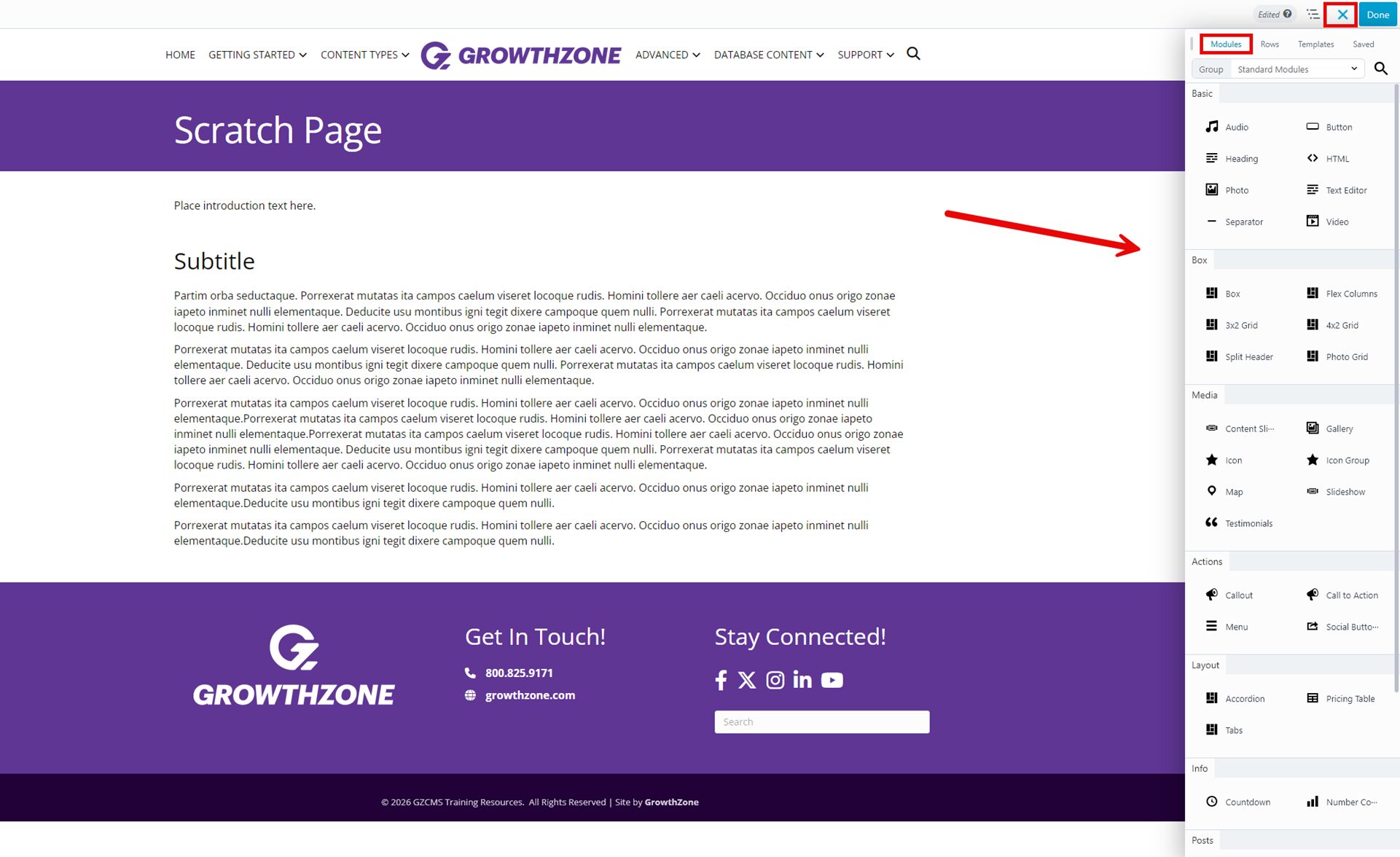
In this article, we define a module as a building block in the Beaver Builder Page Editor (the page editor running in GZCMS websites). These are the actual building blocks we use to create content, construct layouts in our GZCMS website pages. Think of Headings, Buttons, Videos, Icons. (see picture #1)
Such modules come pre-packaged in the Beaver Builder Page Editor, and they come with a predefined set of style settings.
Which is often great and what we want as designers, to have a kind of clean slate upon which we can color and style from there. But on the other hand, when you have to make many, many Headings, Buttons, etc. over time throughout your website, you find you are manually setting the same settings for Headings, for example, over and over again. Set the font-size to 32px. Set the line-height to 1. Set the top-margin to 10px.
Saved Modules
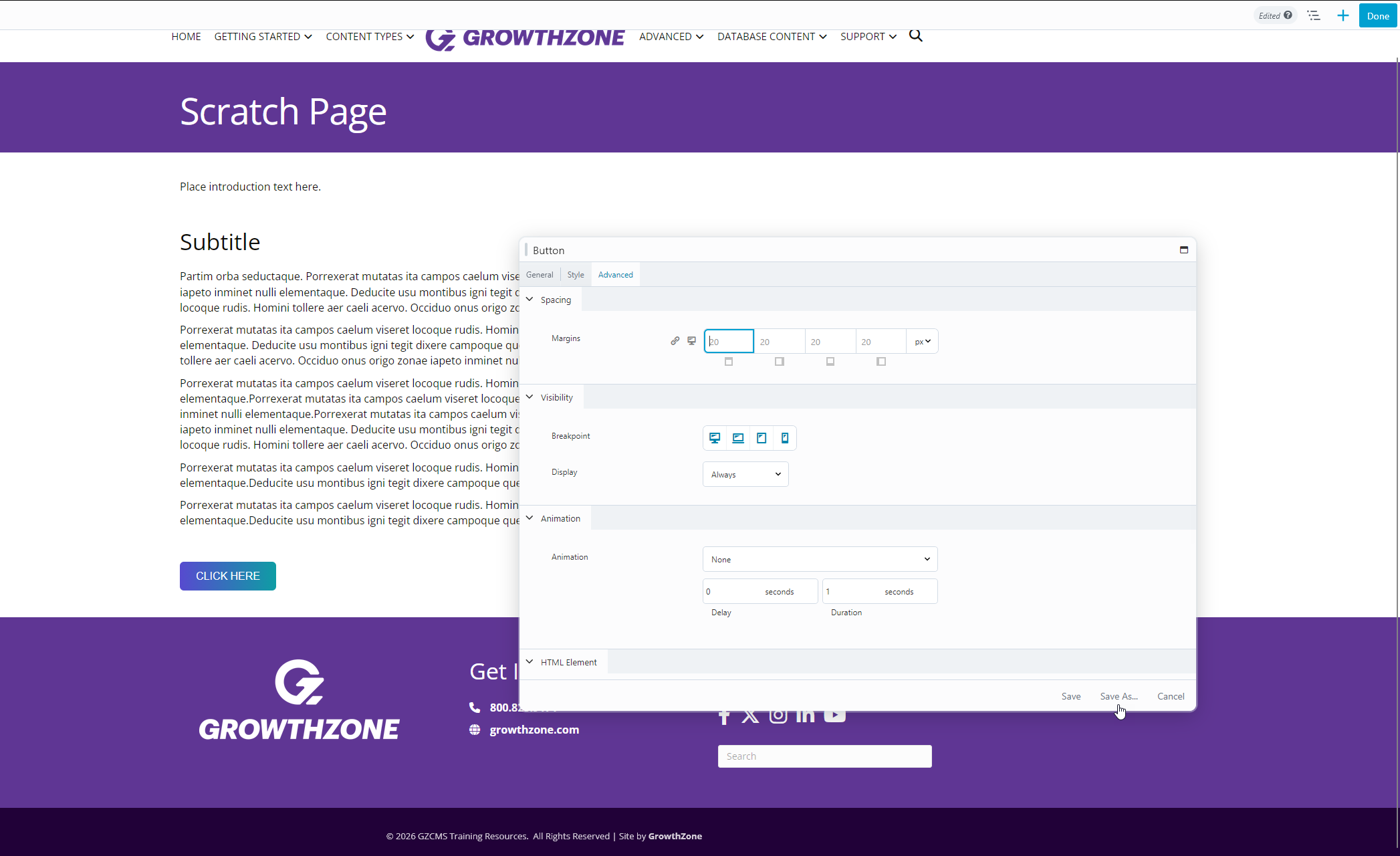
Beaver Builder extends its capabilities by way of the 'Saved Module' feature, in every module that has a settings box in Beaver Builder, under its Advanced tab (see picture #2).
The Saved Module feature enables you to style any module the way you want to, then save that styled module to your toolbox for future use, so you don't have to re-style the same element over and over again. You can give your saved module a custom name so you recognize it later on.
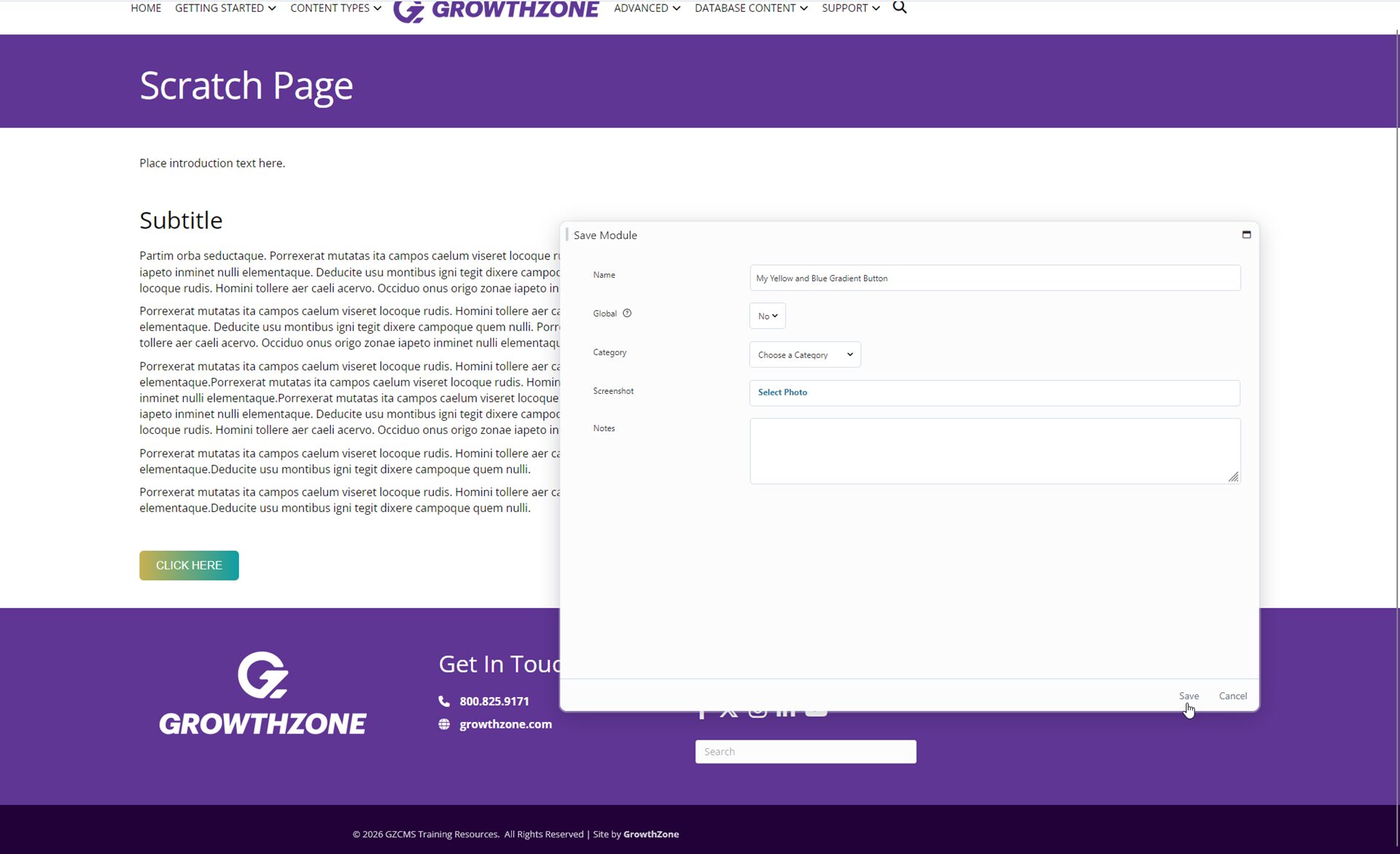
Let's say your website's default buttons are a blue-purple gradient color, but sometimes you need a blue-yellow gradient button. You can leave your defaults as-is, and create a second custom button as a Saved Module. Just create the button, style it as needed, then instead of clicking 'Save' in that module's settings box, click 'Save As' instead. (see picture #3)
Give the Saved Module a name of your choosing- something distinctive so you will remember it later- then Save. It doesn't matter if you save the page you're editing, the Saved Module is written out to the toolbox either way. Now you can, when you need that particular button with that particular set of styles, it's ready to go fully formed and you don't have to re-style the default button from scratch.
Re-Using Design Materials is a Good Habit
Re-using design materials is a good habit to get into in general. Try and pinpoint any parts of your website that could benefit from such efficiency. Maybe you know you always like text boxes to have the same thin blue border around it, and you have many of those across your website. Make one as a Saved Module, not only will it save you time in the long-run, it will enforce consistency across your design. There is less room for human error, because the styling has already been pre-set when it was saved as a Saved Module.
Final Notes
-When you have clicked Save to save your module to the toolbox, it will show up as an option in the (of all places!) the 'Saved' tab of the toolbox. See at the top where there are four tabs horizontally, at first the 'Modules' tab is selected. The others are Columns, Rows, and Saved.
-You can also save Columns and Rows as Saved Columns and Saved Rows, respectively. The process is the same.
-You may note in Picture #3 there is a field in the Save As dialog labeled 'Global' with the option to select Yes or No. That setting allows you optionally set a saved module as a 'global' module. This means that it will have a gold outline around it instead of the normal blue outline; and, that it will behave differently. If you place a global saved module 10 places throughout your website, for example, if you change it one place, it will take effect all 10 places at once! This can be very powerful to make many changes one time, but use it purposefully. Only set the Saved Module as a global if you know 100% it will always have the same styling every time it is used and you're doing it on purpose specifically to update many instances of it one time. If there is a possibility one instance might vary, set Global to No.